How to manage social media for multiple clients, week by week
A working system for running several clients' social accounts: one workspace each, naming rules, a weekly rhythm, voice briefs and access without passwords.

With two or three clients you can keep everything in your head. Somewhere around the fifth, the head stops being enough: a post goes out on the wrong account, a brief lives in an email nobody can find, a client's Instagram quietly disconnects and three days of posts never publish.
Posting is rarely what breaks. Switching between clients is. The fix is a system that makes every client look the same from the inside, so you spend your attention on the work and not on remembering where things are.
Give every client its own workspace
Each client needs one place that holds everything about them: their social accounts, brief, calendar, media, approvals and reports. Whether that place is a tool, a shared drive or both, the rule is the same: nothing about client A lives anywhere near client B.
A folder structure that scales:
Clients/
  Rossi-Bakery/
    00-Brief/
    01-Brand-assets/        logo, fonts, colours, photo style
    02-Raw-media/2026-11/
    03-Ready/2026-11/
    04-Approved/2026-11/
    05-Reports/2026/
    06-Admin/               contract, access list, contacts
The numbers keep the folders in the same order for every client. Monthly subfolders stop "Raw media" from turning into a 900-file swamp.
Name files so they sort themselves
Use one pattern for every file, dates first:
2026-11-04_rossi_ig_reel_v2.mp4
Date, client, network, format, version. Sorted by name, a folder becomes a timeline. Searching "rossi_ig" finds every Instagram asset for that client. When the client approves v2, you know exactly which file went live.
Agree on the short codes once (ig, fb, li, tt, x, th, pin) and keep them everywhere, including in calendar titles.
A weekly operating rhythm
A fixed rhythm is what lets you take on another client without working weekends. Batch by task rather than by client, so you stay in one kind of thinking at a time:
| Day | Focus | For every client |
|---|---|---|
| Monday | Send and plan | Send next week's batch for approval, check last week's results, list the media you still need |
| Tuesday | Create | Write captions, edit visuals and prepare per-network versions for the following batch |
| Wednesday | Feedback | Feedback deadline for Monday's batch; read it all and start revisions |
| Thursday | Revise and create | Send second rounds where needed, keep creating |
| Friday | Schedule and admin | Schedule everything approved, check each account is connected, clear the inbox, update reports, invoice |
Content is written about two weeks before it goes out: created this week, reviewed next Monday to Wednesday, scheduled that Friday, published the week after. The buffer is what absorbs late feedback and missing photos.
Add a short daily block, around twenty minutes, for comments and messages across all clients. Replies that wait until Friday are replies that arrive too late.
If you send batches for approval, give each client a different deadline day or hour so you are not chasing everyone at once. The details of that loop are in our guide to client approval workflows.
One calendar per client, one view across all of them
Each client should see their own calendar and nothing else. You need the opposite: one view that shows every client together, because that is where the real problems show up. Two launches on the same Tuesday morning. A week where one client has nine posts and another has none. A holiday that matters to a restaurant and not to a law firm.
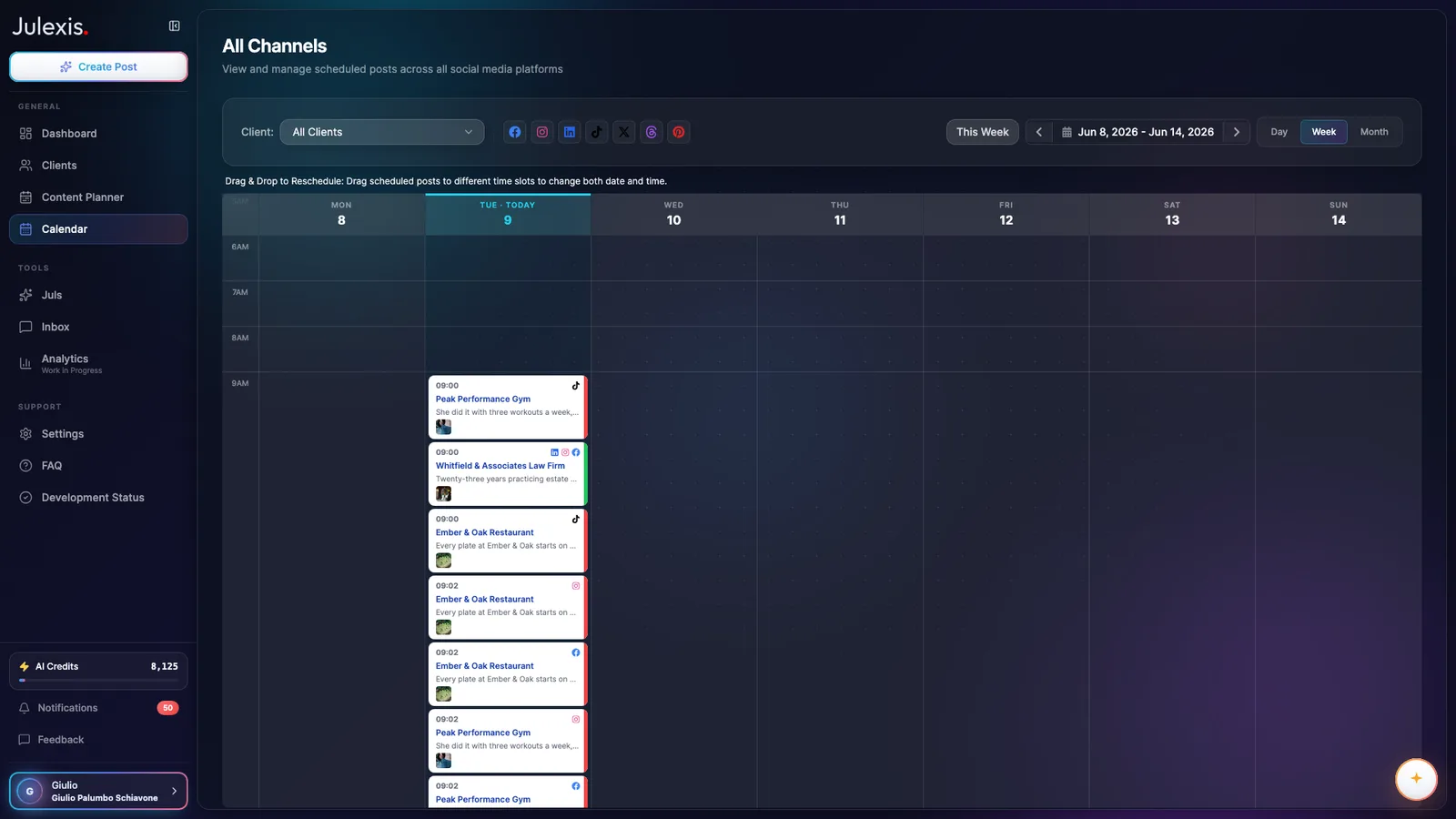 A week calendar showing scheduled posts for several clients side by side, each card labelled with the client and the networks it goes to.
Review the all-client view every Monday. It is the closest thing you have to a workload chart.
Brand voice briefs you will actually use
A brief that runs to twelve pages is a brief nobody opens. Keep each client's voice on one page, with these sections:
- Who they are, in one sentence. "A family bakery in a residential neighbourhood, known for sourdough and early opening hours."
- Who they talk to. Be specific: "Locals aged 30 to 60 who walk past on the way to work", not "food lovers".
- Three voice traits, each with a 'this, not that'. "Warm, not cute. Proud, not boastful. Plain, not technical."
- Words they use and words they never use. A bakery might say "loaf" and never "artisanal".
- Off-limits topics and claims. Health claims, competitors, politics, prices that change weekly.
- Emoji and hashtag policy. How many, which ones, where.
- Three past posts they loved, pasted in full. Examples teach tone faster than adjectives.
- Approver and contacts. Who signs off, who sends media, who to call when something goes wrong.
Update the brief whenever a client corrects you twice on the same thing. That correction is the brief telling you what it is missing.
Onboard every client the same way
Most multi-client mess starts in the first week, when a new client is excited and you skip steps to get the first posts out. A short checklist, done in the same order every time, prevents that:
- Contract signed, with the approval terms, revision rounds and reporting day written in.
- Workspace and folders created from your template, with the client's name spelled the same way everywhere.
- Access granted through platform roles, never passwords, and logged in the access list (more on this below).
- Accounts connected to your scheduling tool, checking that each one is the right Page or profile and not the client's personal account.
- Brief filled in during a 30-minute call, with the three example posts pasted in.
- Approver named, plus a backup for holidays.
- First month's plan sent with dates, so the client sees the rhythm before the first batch arrives.
- Baseline numbers saved for every account, so your first report has something honest to compare against.
The last step is the one people forget. Without a baseline, month one has nothing to be measured against, and every later report starts with an argument about where you began.
Access: never ask for passwords
Shared passwords are one of the fastest ways for a multi-client setup to fall apart: someone changes one, two-factor codes go to a phone you do not have, and an ex-freelancer still has access a year later. They also break the rules you agreed to. Meta's Terms of Service ask users not to share their password or give others access to their account (Meta Terms), and LinkedIn's User Agreement says the same: keep your password secret and do not share your account (LinkedIn User Agreement, section 2.2).
Use the roles each platform provides instead:
- Facebook and Instagram. The client gives your business portfolio partner access to their Page and Instagram account from their own business portfolio (Meta Business Help Center). The client keeps ownership, you get the permissions you need, and the access can be removed when the contract ends.
- LinkedIn Pages. LinkedIn offers three Page admin roles: super admin, content admin and analyst (LinkedIn Help). For day-to-day posting, ask for content admin. The client should keep at least one super admin on their side.
Keep an access list in each client's admin folder: platform, account, who has which role, and the date it was granted. When a contract ends, go through the list with the client and remove yourself.
If you reply to messages from the client's customers, you are handling personal data on the client's behalf. In the EU, the GDPR expects that kind of arrangement to be covered by a written contract between you and the client (GDPR, Article 28). A short data processing agreement attached to your main contract is the usual way to cover it; a lawyer can give you a template that fits your country.
When an account disconnects
Connections between a client's social account and any scheduling tool depend on access that can stop working: the person who connected it loses their admin role, the client removes the app, or someone changes a password. Meta's developer documentation lists "Password Changed" among the reasons a login session stops being valid (Meta error handling guide).
The danger is not the disconnection itself. It is finding out on Friday that nothing has published since Tuesday. When it happens:
- Check what is queued for that account and pause or move anything time-sensitive.
- Ask the client what changed. A new password, a team member removed from the Page, a security alert. Ask kindly, but ask, because the cause tells you whether a simple reconnect will hold.
- Reconnect from an account that still has the right role, ideally yours through partner access, not the client's personal profile.
- Reschedule what was missed, and tell the client which posts moved and why.
Prevention is one line in your onboarding email: "If you change a password, or add or remove people on your Page, please let us know the same day."
If you run your clients in Julexis, each one has a workspace with its own social accounts, plans, calendar and brief, which can be built from documents you upload or from the client's website. One calendar shows every client's scheduled posts together, and when a connected account's access expires or is revoked you get an email, an in-app notification and a banner. See how the workspaces fit together.
Key takeaways
- Give every client an identical structure: same folders, same file names, same short codes for networks.
- Batch your week by task, not by client, and keep a short daily slot for comments and messages.
- Look at one calendar across all clients every Monday; that is where clashes and overloaded weeks show up.
- Never take passwords: use Meta partner access and LinkedIn Page roles, and keep an access list per client.
- Treat a disconnected account as an incident: check the queue, find the cause, reconnect, reschedule.
Cover image generated with AI.