TikTok cover image: how to pick a thumbnail that gets the tap
How to choose and design a TikTok cover that earns the tap, what the app and scheduling tools let you set, the design rules that work and a checklist.
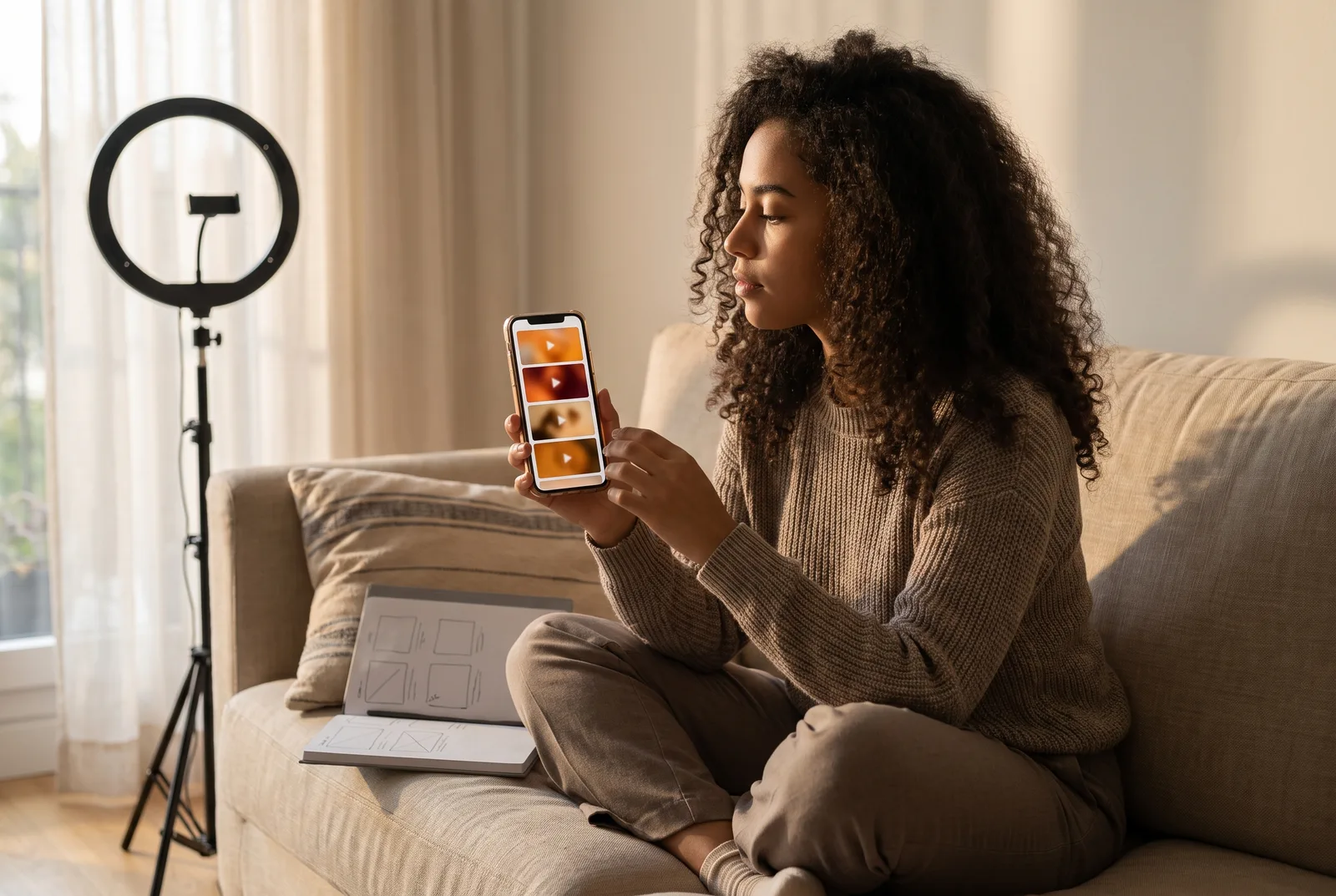
A TikTok cover is the still image that stands in for your video wherever it is not playing, and the place where that matters most is your profile. Someone watches one of your videos, taps your name, and sees a grid of stills. What they open next depends on those stills.
TikTok's Creator Academy says it directly in its guide to video covers: "Your profile can be a major traffic source, so having engaging, high-quality thumbnails is incredibly important." This guide covers where the cover does its work, what you can actually set (in the app and through scheduling tools, which are not the same), and the design rules that hold up.
Why the cover matters
A profile visitor is deciding whether you are worth following, and they decide by scanning. Covers with a clear subject and a few words of text, the Creator Academy notes, "help users quickly find videos that interest them as they scroll through your profile." A grid of random frames gives them nothing to scan.
Covers also do branding work. The same guide says a consistent cover layout "makes your profile look more put together", and recommends using the same template every time you post. For a business, that grid works like a shop window.
Then there is the default. If nobody chooses a cover, TikTok uses the first frame: that is what its Content Posting API does when no cover frame is set, and the Business API's frame setting defaults to 0 ms. First frames are rarely flattering: a half-blink, a hand reaching for the phone, a product not yet in shot.
What TikTok lets you set
In the TikTok app
TikTok's cover editing tool lets you choose a frame from your video and add text on top. You can also make the cover elsewhere (the Creator Academy suggests CapCut templates) and bring it in: tap "+", choose "cover editing", then "upload local cover" (Creator Academy).
Through a scheduling tool
Here it depends on which of TikTok's two publishing APIs the tool uses, and they differ.
| Content Posting API | Business API | |
|---|---|---|
| Pick a frame | Yes, by timestamp (video_cover_timestamp_ms) | Yes, by timestamp (thumbnail_offset) |
| Upload your own image | No | Yes (custom_thumbnail_url) |
| If you set nothing | First frame | First frame (0 ms) |
The Content Posting API only takes a frame: the field "specifies which frame (measured in milli-seconds) will be used as the video cover." The Business API's video publish endpoint accepts both: a frame, or a custom image in JPG, JPEG, WebP or PNG, between 360 × 360 and 1080 × 1920 px (or 1920 × 1080), up to 20 MB. When both are sent, the custom image wins. TikTok added the custom image option on 13 June 2025.
For photo posts, the cover is simply one of the photos, chosen by its position in the post (photo post reference).
So before you design covers for a client's scheduled TikToks, ask your tool one question: does it send my own image, or only a frame? If it only sends a frame, put your cover text inside the video, on the frame you will pick.
If you schedule with Julexis, both options are in the post editor for TikTok: upload your own cover image, or pick a frame from the video. You can see how it fits the rest of the publishing workflow on the features page.
Design rules that work
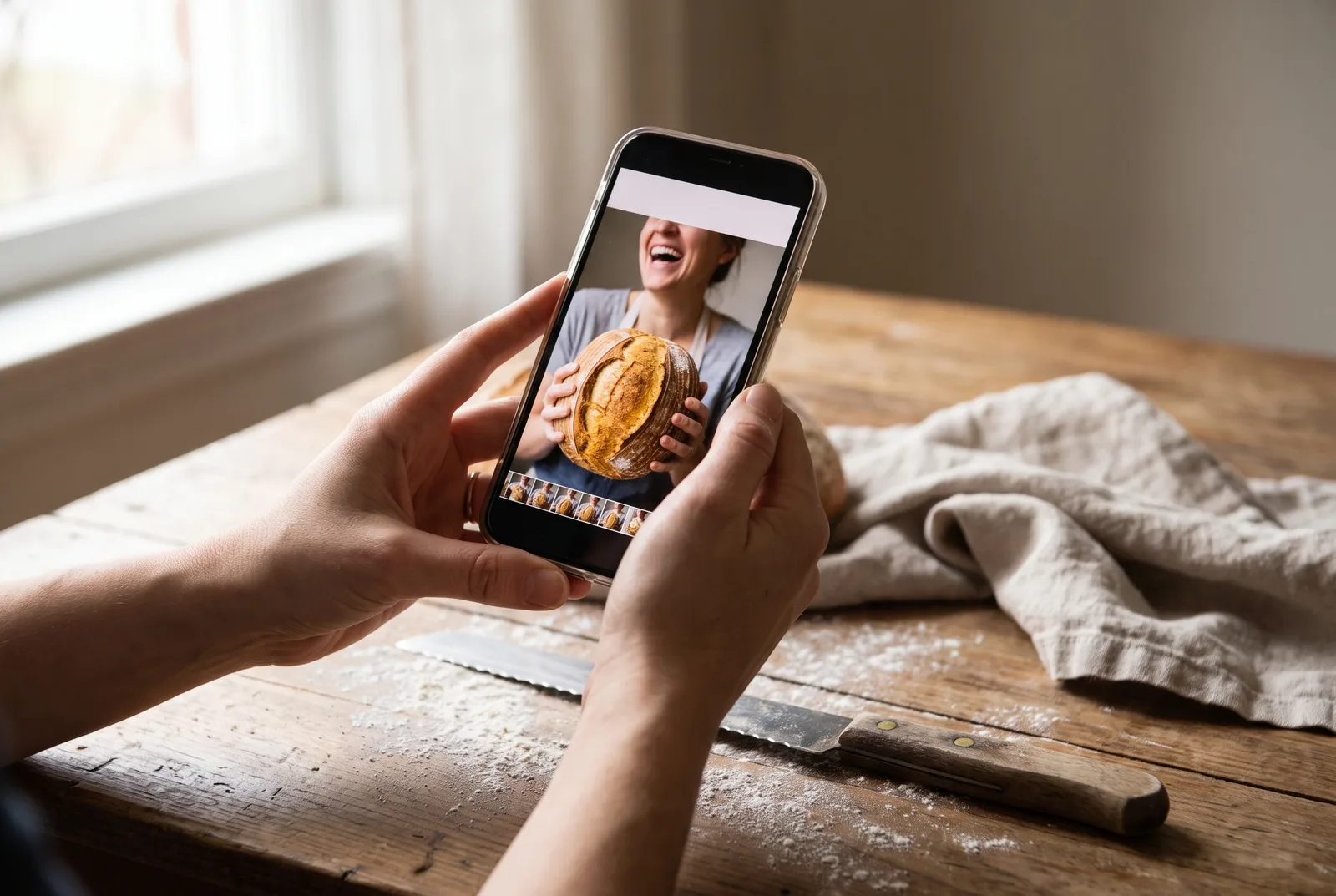 Picking the frame for a cover while editing, with a clear face, a simple subject and room at the top for a short title.
Start from 9:16 at 1080 × 1920
The Creator Academy recommends "a 9x16 aspect ratio and a 1080x1920 pixel resolution for the best results", and repeats that 9:16 is what makes the cover fit correctly, with the text kept inside the frame. Design at full size even though the cover will mostly be seen small. For the rest of TikTok's specs, see our cheat sheet of social media image and video sizes.
Keep everything away from the edges
TikTok calls this the safety zone: "the area of your frame that won't be covered by For You feed elements like buttons, your name, your caption, etc." Its rule of thumb is simple: "avoid placing elements around the edges of your frame." The same image also appears small on the profile grid, so the middle of the frame is the safest place for anything that has to be read.
One face or one subject
TikTok's advice is to "choose a clear picture of the person or object as the visual focus." If you appear in your videos, centre yourself in the frame. If the video is about a product or a dish, pick the sharpest shot of it and place the text around it, never on top of it. Scrub frame by frame: the difference between a blink and a confident expression is a few milliseconds.
Three to five words, big
TikTok suggests text that states the theme ("How to bake bread in five steps") or makes people curious ("The BEST red carpet outfits"), and notes that if regular on-screen text sits at 40 to 50 px, a short title should be larger. A good working rule is three to five words, readable at thumbnail size on a phone. Say you run TikTok for a neighbourhood bakery:
- "Sourdough in 5 steps"
- "Why your crust is pale"
- "Croissant fail vs win"
Each one tells the viewer what they get before they tap.
High contrast, few colours
A thumbnail is small, often seen in passing. Light text on a dark area of the image (or the reverse), a solid band behind the words if the background is busy, and one font. A quick test: shrink the cover to the size of a grid tile on your screen. If you cannot read it at a glance, nobody scrolling will.
One template per account
The Creator Academy's last word on design is consistency: same fonts, text size, colours and image style, and no mixing of personal and professional content. For an agency that means one template per client, saved with the client's font and colours, so whoever makes this week's cover makes it the same way.
Its list of don'ts is short and worth keeping: no blurry stills, no text that blocks the subject, no black borders or margins, and no cover without context.
A cover routine for client accounts
- Choose the frame, or design the image, while editing. At posting time you are in a hurry and take the first decent frame.
- Export at 1080 × 1920 px with text in the centre, in the client's template.
- Preview it next to the last eight covers on the profile. Does the grid still look like one account?
- Send the cover for approval with the video and caption, not separately. Clients notice covers on their own profile; better they see it first. There is more on that in our guide to client approval.
- Check the profile after publishing. Make sure the right cover went out, not the first frame.
If someone else edits the videos, a three-line cover brief per video saves a round of revisions. For the bakery example it might read:
Frame: 00:04, Marco laughing with the loaf in both hands, eyes to camera. Text: "Sourdough in 5 steps", template Bakery v2, upper third, white on the dark band. Check: face and loaf fully inside the safety zone, nothing within the outer edge of the frame.
It takes a minute to write, and it turns "make a nice cover" into something the editor can get right the first time.
Checklist before you post
- 9:16 at 1080 × 1920 px
- One clear face or subject, in focus, eyes open
- Three to five words that say what the video is about
- Text large, high-contrast and away from the edges
- Same fonts and layout as your recent covers
- No blurry frame, no black bars
- If you schedule: your tool sends your cover, not the first frame
Key takeaways
- The cover works hardest on your profile, where visitors choose your next video from a grid of stills.
- Without a choice, TikTok uses the first frame, which is rarely the one you want.
- In the app you can pick a frame, add text or upload your own image; through scheduling tools it depends on the API, so check whether yours can send a custom image.
- Design at 9:16, 1080 × 1920 px, with one subject, three to five words and nothing near the edges.
- One template per account keeps the grid coherent and makes every cover faster to produce.
Cover image generated with AI.